
How to Separate Text in Excel
Quick answer: To split text into columns, select your data and go to Data > Text to Columns. Pick Delimited, tick the character between the parts (like a comma or a space), and click Finish. In Excel for Microsoft 365 or Excel 2024, you can use =TEXTSPLIT(A2," ") instead. It splits the text in A2 at every space.
Want to follow along? Download the free separate text practice file. It has the sample data used in this guide and an Answers sheet.
Got a column where names, codes, or addresses are stuck together in one cell? You can pull them apart in seconds. Below you’ll learn how to separate text in Excel six ways, with a free practice file at the end.
What is a delimiter in Excel?
A delimiter is the character that sits between the parts you want to pull apart. It can be a comma, a space, a dash, a pipe (|), or a line break. In “Smith, John” the comma is the delimiter. Excel uses it to know where to cut.
Which method should you use?
Pick by your Excel version and by whether your data will change later.
| Method | Works in | Updates when data changes? | Best for |
|---|---|---|---|
| Text to Columns | All versions | No | One-time cleanup |
| Flash Fill | Excel 2016 and newer | No | Messy text you can show by example |
| TEXTSPLIT | Microsoft 365, Excel 2024 | Yes | Splitting at a comma, space, or other mark |
| TEXTBEFORE / TEXTAFTER | Microsoft 365, Excel 2024 | Yes | Grabbing one part, like a first or last name |
| LEFT, MID, FIND | All versions | Yes | Older Excel versions |
| Power Query | Excel 2016 and newer | Yes, on refresh | Big lists, or splitting into rows |
How do I separate text into different columns?
Text to Columns works in every version of Excel. Here’s how to use it:
- Select the cells you want to split.
- Go to Data > Text to Columns.
- Choose Delimited and click Next.
- Tick your delimiter. For anything else, like a dash, tick Other and type it in the box.
- Click Next. In the Destination box, pick an empty cell, then click Finish.
Two tips save a lot of trouble. First, always set the Destination. If you skip it, Excel writes over the columns next to your data. Second, if your codes start with zeros, like 00125, click that column in the preview and set it to Text. Otherwise Excel drops the zeros.
Your text has no delimiter but every part is the same length? Choose Fixed width in step 3 and click where each break should go.
What is the shortcut to separate text in Excel?
On Windows, press Alt, then A, then E, one after the other. This opens Text to Columns.
For Flash Fill, the shortcut is Ctrl+E.
How do I use Flash Fill to split text?
Flash Fill copies a pattern you show it.
- Next to your first row, type the part you want. For “John Smith”, type John.
- Click the cell below it.
- Press Ctrl+E.
Excel fills the rest of the column. Check a few rows, because it can guess wrong when your data is uneven. Keep in mind that Flash Fill results stay the same if the original text changes later.
How do I separate text in Excel using a formula?
Formulas update by themselves when your data changes. Which one you use depends on your version.
Microsoft 365 or Excel 2024: TEXTSPLIT splits at every delimiter.
=TEXTSPLIT(A2,",")Need just one piece? TEXTBEFORE and TEXTAFTER grab the text on either side of a delimiter.
=TEXTBEFORE(A2,",")
=TEXTAFTER(A2,",")
Excel 2021, 2019, or older: combine LEFT, MID, and FIND.
=LEFT(A2,FIND(",",A2)-1)
=MID(A2,FIND(",",A2)+1,LEN(A2))
FIND tells Excel where the comma sits. LEFT takes everything before it. MID takes everything after it. If a space follows the comma, wrap the formula in TRIM to remove it.
How do I split text with Power Query?
Power Query is best for big lists or files you import again and again.
- Click any cell in your data.
- Go to Data > From Table/Range.
- In the Power Query window, go to Home > Split Column > By Delimiter.
- Pick your delimiter and click OK.
- Click Close & Load.
When new rows arrive, right-click the results table and choose Refresh.
Can you split one cell into two in Excel?
Not like a table in Word. An Excel cell can’t be cut in half. What you can do is move its contents into two cells side by side, using any method above. If the cell was merged, select it and go to Home > Merge & Center > Unmerge Cells.
How do I separate text in Excel by comma?
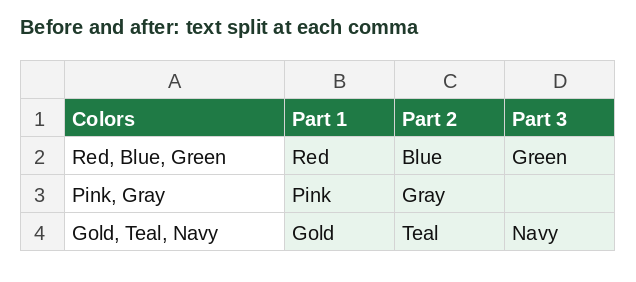
To split “Red, Blue, Green” across columns:
=TRIM(TEXTSPLIT(A2,","))TRIM removes the space after each comma.
Got a long list in an email, like ABC123, ABC456, ABC789? Paste it into cell A1. This formula puts each item in its own row:
=TRIM(TEXTSPLIT(A1,,","))Leaving the second part empty tells Excel to split down, not across.
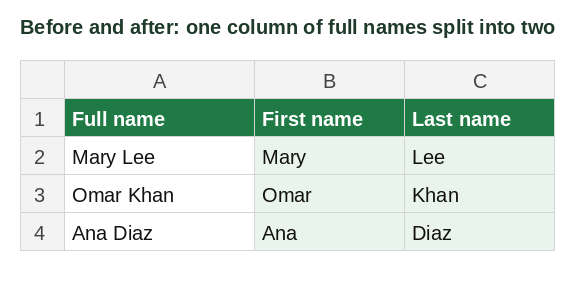
How do I separate first and last names?
=TEXTBEFORE(A2," ")
=TEXTAFTER(A2," ",-1)
The first formula returns the first name. The -1 in the second one tells Excel to start from the end, so “Mary Ann Lee” gives you Lee, not Ann Lee.
On Excel 2021 or older, use this for the first name:
=LEFT(A2,FIND(" ",A2)-1)How do I split text into rows instead of columns?
For one cell, put the delimiter in the third spot:
=TEXTSPLIT(A2,,"|")To stack many cells into one long column, join them first, then split:
=TRIM(TEXTSPLIT(TEXTJOIN("|",TRUE,A2:A500),,"|"))So “item1 | item2 | item3” in A2 and “item1 | item2” in A3 become five rows. TEXTJOIN can’t build text longer than 32,767 characters. For bigger lists, use Power Query. In the Split Column window, open Advanced options and choose Split into Rows.
How do I split text separated by line breaks?
A line break you typed with Alt+Enter is character 10 to Excel. So use:
=TEXTSPLIT(A2,CHAR(10))In Text to Columns, tick Other, click in its box, and press Ctrl+J. The box looks empty, but it now holds the line break.
Want to count which entries show up most? Stack them all in one column first:
=TEXTSPLIT(TEXTJOIN(CHAR(10),TRUE,A2:A200),,CHAR(10))Then use COUNTIF or a PivotTable on the result.
How do I split a cell at a certain word?
Say every cell has the word “Total” somewhere in it.
Text before the word:
=LEFT(A2,SEARCH("Total",A2)-1)The word and everything after it:
=MID(A2,SEARCH("Total",A2),LEN(A2))SEARCH ignores capital letters. Use FIND instead if case matters.
How do I separate text after a certain number of characters?
To split after the 5th character:
=LEFT(A2,5)
=MID(A2,6,LEN(A2))
Change 5 and 6 to fit your data. You can also use Text to Columns with Fixed width.
How do I split text and numbers in one cell?
Take “12ME”. The fastest fix is Flash Fill: type 12 and ME next to the first row, then press Ctrl+E.
This formula works in any version when all the digits come first. It counts the digits, then takes that many characters from the left:
=LEFT(A2,SUM(LEN(A2)-LEN(SUBSTITUTE(A2,{0,1,2,3,4,5,6,7,8,9},""))))With that result in B2, this returns the letters:
=MID(A2,LEN(B2)+1,LEN(A2))In Microsoft 365 only, REGEXEXTRACT can pull numbers or letters from anywhere in the cell:
=REGEXEXTRACT(A2,"\d+")
=REGEXEXTRACT(A2,"[A-Za-z]+")
REGEXEXTRACT gives back text, so wrap the first one in VALUE if you need a real number.
How do I split a word into one letter per cell?
In Microsoft 365 or Excel 2021 and newer:
=MID(A2,SEQUENCE(1,LEN(A2)),1)How do I separate text when there’s no space or pattern?
Every method needs some kind of rule: a delimiter, a position, or a type of character. If a rule exists but is hard to describe, try Flash Fill with two or three examples.
If your rows follow no rule at all, no formula or tool can guess what you want. Look at your data and decide the rule first. For example, “pull out all the letters” is a rule REGEXEXTRACT can follow:
=REGEXEXTRACT(A2,"[A-Za-z]+",1)The 1 at the end returns every group of letters, not only the first.
Why isn’t my split working?
| What you see | Why it happens | Fix |
|---|---|---|
| #SPILL! | The cells where results should go aren’t empty | Clear those cells |
| #NAME? | Your Excel version doesn’t have that function | Use LEFT, MID, and FIND instead |
| #VALUE! | The delimiter isn’t in that cell | Wrap the formula: =IFERROR(formula,A2) |
| Data next to yours got replaced | Text to Columns wrote over it | Press Ctrl+Z, then set a Destination |
| Zeros vanished or numbers became dates | Excel changed the format | Set that column to Text in the wizard |
| Extra spaces in results | A space came after the delimiter | Wrap the formula in TRIM |
Practice challenge
Now try it yourself. Download the free separate text practice file. It has the data below, two extra practice sheets, and an Answers sheet.
Your column A has these three cells:
| A |
|---|
| Lee, Mary, Sales, 2019 |
| Khan, Omar, IT, 2021 |
| Diaz, Ana, HR, 2023 |
- Split each cell into four columns: last name, first name, team, and start year.
- Make the year a real number, not text.
- Bonus: list all three teams in one column with a single formula.
Stuck? The Answers sheet in the file shows each formula.
Now you know how to separate text in Excel for almost any kind of data.