
Quick Analysis Tool in Excel
Quick answer: The Quick Analysis tool in Excel is a built-in menu that turns selected data into charts, totals, tables, sparklines, or color-coded formatting in one or two clicks. Select a range, then press Ctrl + Q or click the small button at the bottom-right corner of your selection.
Want to follow along? Download the free Quick Analysis practice file. It has the sample data used in this guide and an Answers sheet.
What is the Quick Analysis tool in Excel?
It’s a pop-up menu that shows up when you select a block of data. It gives you a short list of common actions that fit what you selected. Microsoft added it in Excel 2013 and describes it as a way to turn data into a chart or table “in two steps or less.”
Hover over any option to preview it on your sheet. Nothing changes until you click.
The options change with your data type:
- Numbers get options like Data Bars and Sum.
- Text gets options like highlighting duplicate values.
- Dates get options like Last Month.
Where is the Quick Analysis button?
- Select two or more cells that contain data.
- Look at the bottom-right corner of your selection.
- Click the small Quick Analysis button.
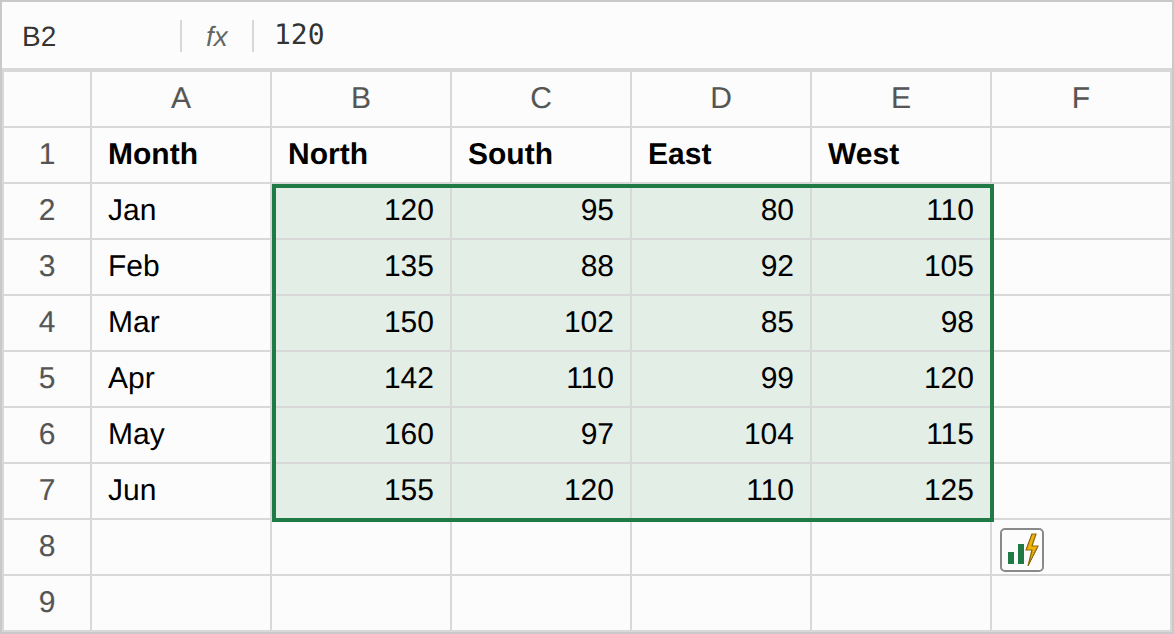
You can also right-click your selection and choose Quick Analysis from the menu.
What is the shortcut for Quick Analysis in Excel?
Select your data and press Ctrl + Q. The menu opens right away. This works even when the floating button is turned off in Excel Options.
Once the menu is open, press one letter to jump to a tab:
| Tab | Press after Ctrl + Q |
|---|---|
| Formatting | F |
| Charts | C |
| Totals | O |
| Tables | T |
| Sparklines | S |
Tip: Click any single cell in your data and press Ctrl + Q. Excel selects the whole data block for you, so you don’t have to drag.
Is there a Quick Analysis shortcut other than Ctrl + Q?
No, there’s no second dedicated shortcut. Right-click your selection and pick Quick Analysis instead. To keep your hands on the keyboard, press Shift + F10 (or the Menu key) to open the right-click menu, then use the arrow keys to reach Quick Analysis.
How do you use each Quick Analysis tab?
The examples in this guide use this small sales table in cells A1:E7:
| Month | North | South | East | West |
|---|---|---|---|---|
| Jan | 120 | 95 | 80 | 110 |
| Feb | 135 | 88 | 92 | 105 |
| Mar | 150 | 102 | 85 | 98 |
| Apr | 142 | 110 | 99 | 120 |
| May | 160 | 97 | 104 | 115 |
| Jun | 155 | 120 | 110 | 125 |
Formatting
This tab adds conditional formatting, which colors cells based on their values.
- For numbers: Data Bars, Color Scale, Icon Set, Greater Than, and Top 10%.
- For text: highlight duplicate values, unique values, or cells that contain certain text.
- For dates: highlight dates such as Last Month or Last Week.
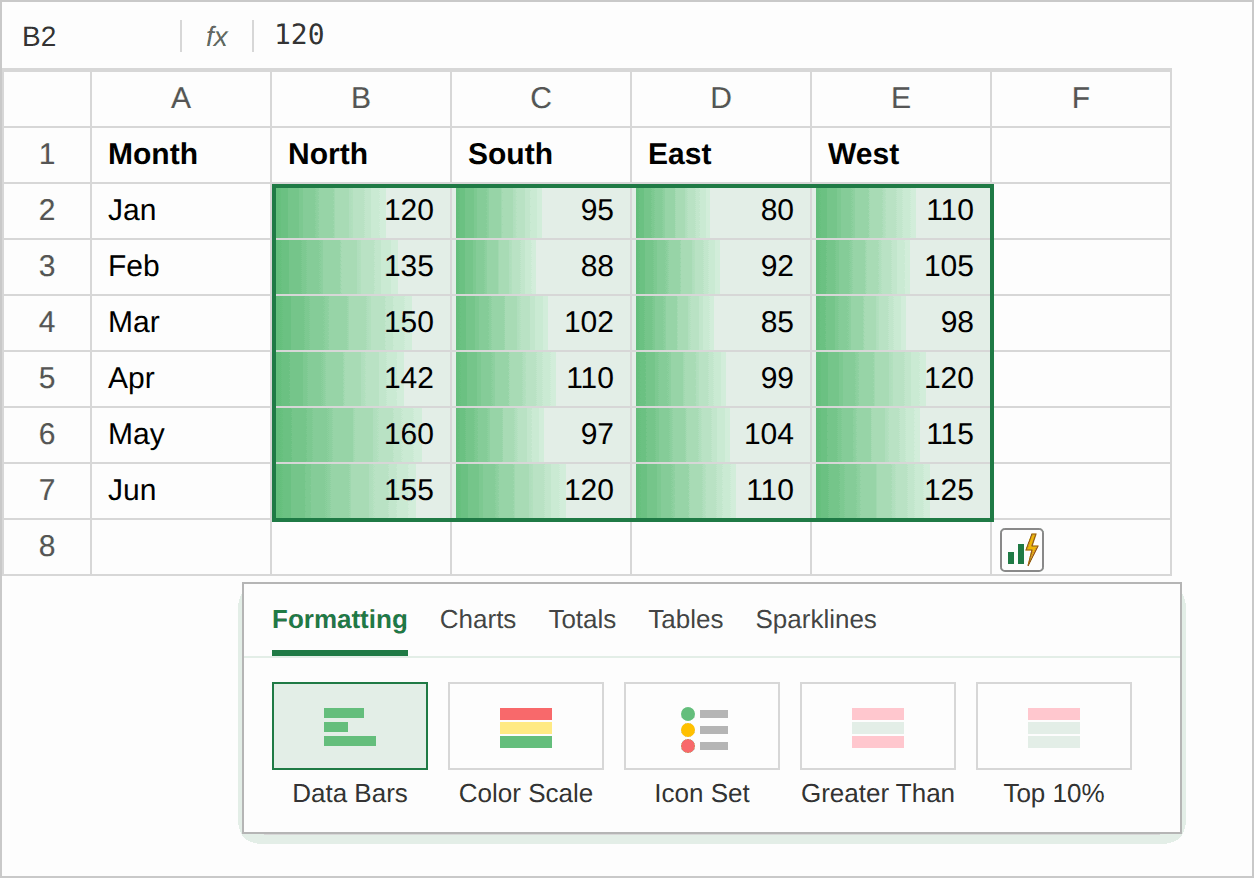
Use it to spot high, low, or repeated values in seconds.
Charts
This tab shows chart types Excel recommends for your data, such as Clustered Column or Pie. Hover over one to preview it. Click More Charts to see every chart type.
Use it when you need a quick visual for a report or email.
Totals
This tab adds formulas for Sum, Average, Count, % Total, and Running Total. Each one comes in two versions:
- One adds a new row under your data with a result for each column.
- One adds a new column to the right with a result for each row.
The row versions have a blue icon and the column versions have a yellow-orange one, so check the preview before you click. Excel inserts real formulas, so the results update when your numbers change.
Tables
- Table turns your range into an Excel Table, which adds sort and filter buttons and grows as you add rows.
- PivotTable options show ready-made PivotTables that summarize your data.
Sparklines
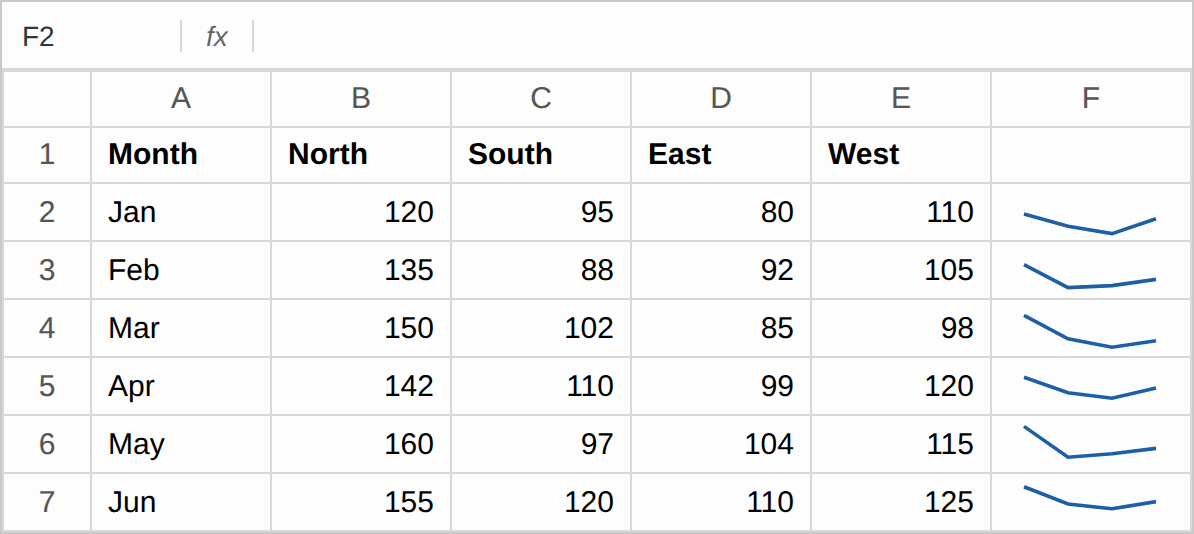
Sparklines are tiny charts that fit in one cell. Pick Line, Column, or Win/Loss to show the trend for each row. They work well for monthly data like the sales table above.
How do you sum with the Quick Analysis tool?
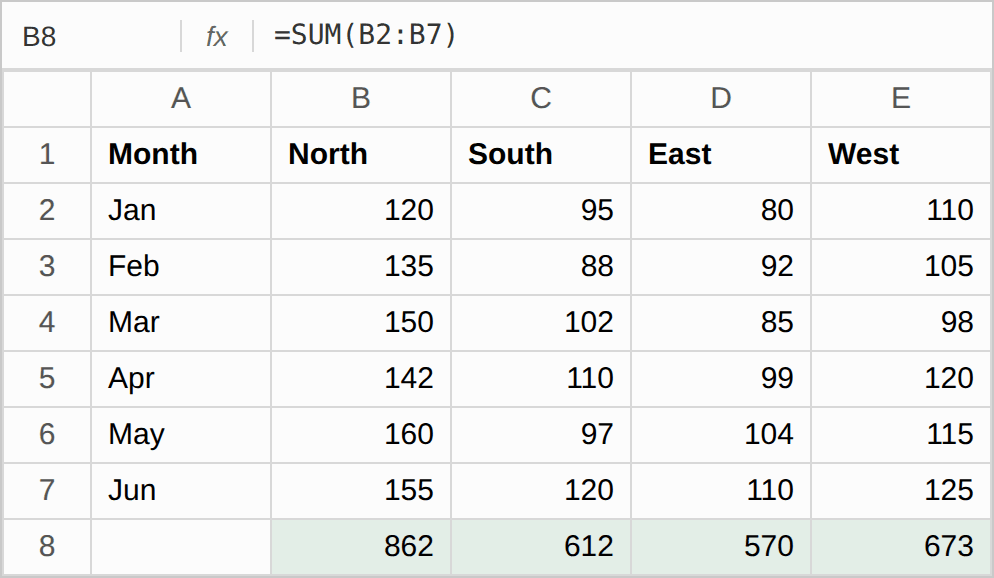
Select your numbers (B2:E7 in the sample), press Ctrl + Q, open Totals, and click Sum. Pick the blue icon for a total under each column or the yellow-orange icon for a total at the end of each row. If only Count shows up, jump to the stored-as-text fix below.
How do you calculate percentages with Quick Analysis?
Select your numbers, press Ctrl + Q, open Totals, and choose % Total. Excel shows each value’s share of the column or row total. The formulas stay live, so the percentages update when your data changes.
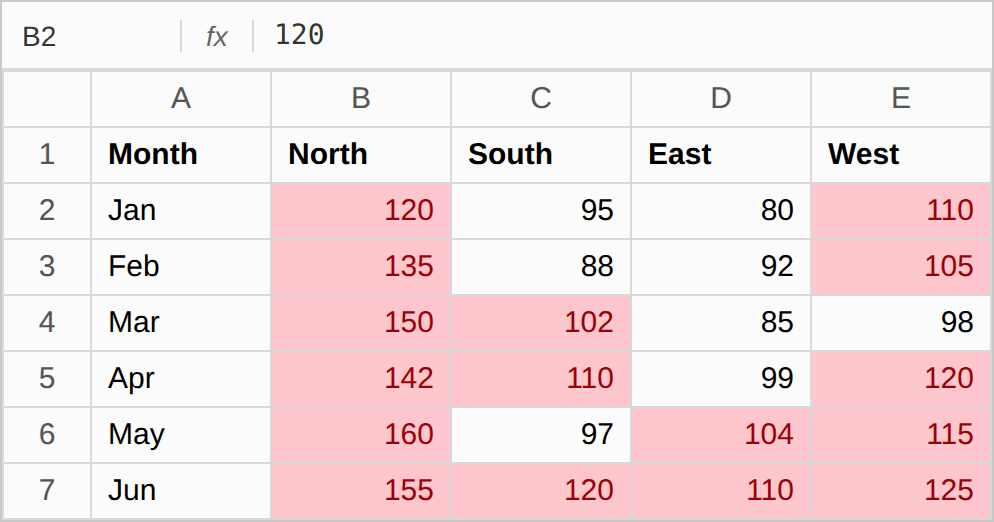
How do you highlight values above a target?
- Select B2:E7.
- Press Ctrl + Q and open Formatting.
- Click Greater Than.
- Type 100, pick a color, and click OK.
Which Excel versions have Quick Analysis?
| Excel version | Available? |
|---|---|
| Excel 2013 and later on Windows, including Microsoft 365 | Yes |
| Excel 2010 and earlier | No |
| Excel for Mac | No |
Does Excel 2010 have Quick Analysis?
No. The feature first appeared in Excel 2013. In Excel 2010, use the ribbon instead:
- Conditional Formatting on the Home tab.
- Charts and Sparklines on the Insert tab.
- AutoSum for totals.
Where is Quick Analysis in Excel for Mac?
Excel for Mac doesn’t include this feature. The same tools are on the Mac ribbon. Conditional Formatting is on the Home tab, and charts and sparklines are on the Insert tab. For totals, turn your data into an Excel Table.
Is there a Quick Analysis shortcut on Mac?
No. Because Excel for Mac doesn’t have the feature, there’s no shortcut for it. Don’t press Cmd + Q, because that quits Excel.
Why is the Quick Analysis tool not showing up?
Check these five causes:
- The option is off. Go to File > Options > General and tick Show Quick Analysis options on selection.
- You selected blank cells. The button needs cells with data.
- You selected whole rows or columns. Select only the cells you need.
- You used Ctrl to pick separate ranges. The button doesn’t appear for multiple selections.
- Your version doesn’t have it. Excel 2010 and Excel for Mac don’t include it.
Ctrl + Q still opens the menu when the button is hidden.
Why is Quick Analysis not showing up on Mac?
Excel for Mac doesn’t have the feature, so no setting will turn it on. Use the Home and Insert tabs on the ribbon to do the same jobs.
How do I turn off or remove the Quick Analysis button?
To hide the pop-up button, go to File > Options > General and untick Show Quick Analysis options on selection. Click OK.
To undo a change you just made, press Ctrl + Z. To remove formatting you added earlier, go to Home > Conditional Formatting > Clear Rules.
Why is Sum missing from the Totals tab?
If Totals only shows Count, Excel is reading your numbers as text. This often happens with data pasted from another app. A quick clue is that the numbers line up on the left side of the cell instead of the right.
To fix it:
- Copy an empty cell.
- Select the column with the problem numbers.
- Right-click and choose Paste Special.
- Pick Values, then pick Add under Operation, and click OK.
Your numbers now line up on the right, and Sum shows up again.
How is Quick Analysis different from other Excel analysis tools?
| Tool | Where to find it | Best for |
|---|---|---|
| Quick Analysis | Ctrl + Q or the button | Fast formatting, charts, and totals on a selected range |
| Ribbon commands | Home and Insert tabs | Full control over rules, charts, and settings |
| Analyze Data | Home tab (Microsoft 365) | Asking questions about your data in plain words |
| Analysis ToolPak | Data > Data Analysis | Statistics reports such as Descriptive Statistics |
The Ctrl + Q menu gives you a short list of preset options. If you need a custom formatting rule or detailed chart settings, go to the ribbon. Analyze Data can’t handle data sets over 1.5 million cells.
Is Quick Analysis the same as the Data Analysis tool for descriptive statistics?
No. Descriptive statistics come from the Analysis ToolPak add-in, which is a different tool.
- Go to File > Options > Add-ins.
- In the Manage box, choose Excel Add-ins and click Go.
- Tick Analysis ToolPak and click OK.
- Go to Data > Data Analysis, pick Descriptive Statistics, and click OK.
- Enter your input range, tick Summary statistics, and click OK.
Your challenge
Open the practice file. It holds the sales table from this guide. Try these five tasks using only Ctrl + Q:
- Add Data Bars to all sales numbers.
- Add a Sum under each region column.
- Show each month’s % of the row total.
- Turn the range into an Excel Table.
- Add Line sparklines at the end of each row.
Check your work on the Answers sheet. If you finish all five in under two minutes, you’ve got it.
Frequently asked questions
What are the five tabs in Quick Analysis?
Formatting, Charts, Totals, Tables, and Sparklines.
Can Quick Analysis create a PivotTable?
Yes. Open the Tables tab and pick one of the suggested PivotTables.
Why do I see different options each time?
The menu shows options that match your data. Numbers, text, and dates each get their own set.
Does Quick Analysis change my data?
No, your values stay the same. Formatting changes how cells look, and Totals adds formulas in a new row or column. Press Ctrl + Z to undo either one.
Key takeaways
| Task | How |
|---|---|
| Open Quick Analysis | Select data, then press Ctrl + Q |
| Jump to a tab | Ctrl + Q, then F, C, O, T, or S |
| Add totals | Ctrl + Q > Totals > Sum, Average, Count, % Total, or Running Total |
| Turn the button on or off | File > Options > General |
| Fix a missing Sum | Convert text numbers with Paste Special > Add |
| Versions | Excel 2013 and later on Windows |