
How to Group Rows in Excel
Quick answer: To group rows in Excel, select the rows and go to Data > Outline > Group. You can also press Shift + Alt + Right Arrow on Windows or Cmd + Shift + K on Mac. Excel adds a minus (-) button next to the rows. Click it to hide them. Click the plus (+) button to show them again.
Want to follow along? Download the free group rows practice file. It has the sample data used in this guide and an Answers sheet.
Why group rows in Excel?
Grouping hides detail rows under a total row. You see the summary first. You open the details only when you need them.
This helps with reports, budgets and data analysis. Grouping does not delete anything. The rows are only tucked behind a button. You can build up to 8 levels of groups.
How do you group rows in Excel?
Select the rows, then click Group on the Data tab. Leave the total row out of your selection. Excel puts the +/- button on that row.
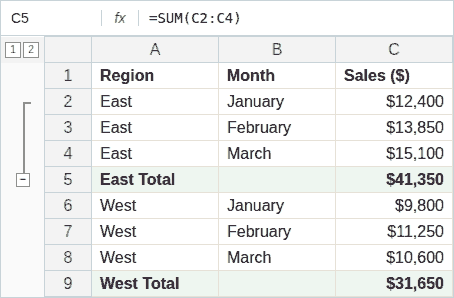
Here is an example. Rows 2 to 4 hold January to March sales for the East region. Row 5 holds the East total.
- Click the row numbers to select rows 2 to 4.
- Go to the Data tab.
- In the Outline group, click Group.
- If a box asks, pick Rows and click OK.
Excel draws a bracket next to rows 2 to 4. A minus (-) button shows up next to row 5.
What is the shortcut to group rows in Excel?
Select whole rows first. Then press Shift + Alt + Right Arrow on Windows or Cmd + Shift + K on Mac.
| Action | Windows | Mac |
|---|---|---|
| Group rows | Shift + Alt + Right Arrow | Cmd + Shift + K |
| Ungroup rows | Shift + Alt + Left Arrow | Cmd + Shift + J |
| Show or hide the outline buttons | Ctrl + 8 | Control + 8 |
| Select visible cells only | Alt + ; | Shift + Cmd + * |
If you select cells instead of whole rows, Excel opens a box. It asks if you want to group rows or columns.
How do you collapse and expand rows in Excel?
Click the minus (-) button to collapse a group. Click the plus (+) button to expand it. You have four more ways to do it:
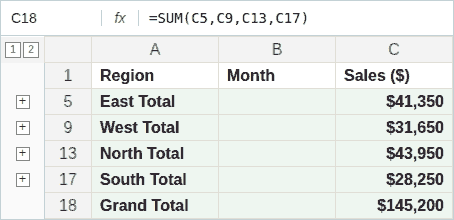
- Level numbers: Click the small numbers 1, 2, 3 at the top left of the sheet. Click 1 to see only the top level. Click the highest number to see every row.
- Mouse: Hold Shift and scroll up over open rows to collapse them. Hold Shift and scroll down over closed rows to expand them.
- Keyboard: Press Alt + Shift + Minus (-) to collapse. Press Alt + Shift + Equal sign (=) to expand.
- Ribbon: Use Hide Detail and Show Detail on the Data tab.
Columns work the same way.
How do you group columns?
Select whole columns. Then click Data > Group, or press Shift + Alt + Right Arrow. The +/- button shows up above the columns, not beside them.
How do you make groups inside groups?
Start with the big group, then add the small ones inside it.
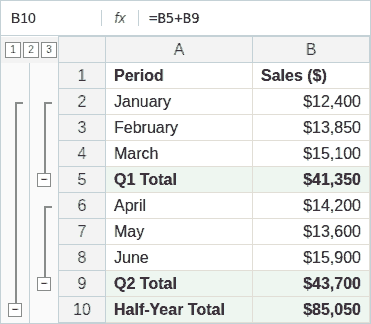
Say rows 2 to 9 hold two quarters. Each quarter has three months and a total row. Row 10 holds the half-year total.
- Select rows 2 to 9. This includes the quarter total rows, but not row 10.
- Click Group.
- Select the three month rows of the first quarter. Leave out its total row.
- Click Group.
- Do the same for the second quarter.
Each new layer adds a new level number at the top left. Excel allows up to 8 levels.
How do you group rows under a heading?
Put the heading row above the details. Select only the rows below the heading and group them.
Next, tell Excel your summary sits on top:
- Go to the Data tab.
- Click the small arrow in the corner of the Outline group.
- Clear the box Summary rows below detail.
- Click OK.
Now the +/- button sits on the heading row. The heading stays in view when you collapse the group.
How do you group rows that sit next to each other?
If you use Group on two sets of rows that touch, Excel joins them into one big group. To keep them apart, leave one row outside the groups between each set. It can be a heading, a total or a blank row.
For example, group rows 2 to 4. Skip row 5. Then group rows 6 to 8.
How do you group rows automatically?
Use Auto Outline. Click any cell in your data. Go to Data, click the arrow under Group, then click Auto Outline.
Excel builds the groups for you if your sheet is set up like this:
- Each column has a label in the first row.
- Each group has a total row with a formula, like SUM, right above or below it.
- There are no blank rows or columns in the range.
No formulas in your data? Use Subtotal instead. It adds the totals and the groups in one step.
How do you group rows with the same name?
Sort by the name column, then use Subtotal.
- Click any cell in the name column.
- Go to Data > Sort A to Z so the same names sit together.
- Go to Data > Subtotal.
- In At each change in, pick the name column.
- In Use function, pick Sum or another function.
- In Add subtotal to, tick the columns you want to total.
- Click OK.
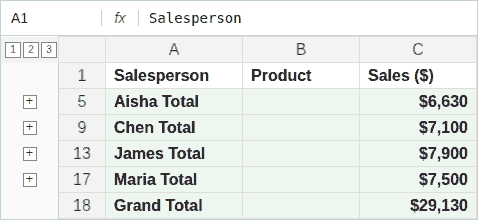
Excel adds a total under each name and groups those rows. To undo it, open Subtotal again and click Remove All.
Note: Subtotal does not work in an Excel table. Convert the table to a normal range first.
How do you group rows based on criteria?
Add a helper column that gives each row a label. Then sort by that column and run Subtotal on it.
| Goal | Helper formula |
|---|---|
| Group names by first letter | =LEFT(A2,1) |
| Group sales above 1,000 | =IF(C2>1000,"Large","Small") |
Fill the formula down. Sort by the helper column. Then go to Data > Subtotal and pick the helper column in At each change in. Each label becomes its own group.
How do you ungroup rows in Excel?
Select the grouped rows. Click Data > Ungroup, or press Shift + Alt + Left Arrow.
To remove every group on the sheet, click the arrow under Ungroup, then click Clear Outline. Your data stays. Only the groups go away.
How do you keep grouped rows together when you sort?
Give every row a label in a helper column. For example, type the project name on each row of that project. Then go to Data > Sort and sort by the helper column first. Click Add Level to sort by other columns after it.
Rows with the same label always end up next to each other. You can then group them again.
How do you copy only the visible rows?
- Collapse the groups you do not want.
- Select the range.
- Press Alt + ; on Windows. You can also go to Home > Find & Select > Go To Special > Visible cells only.
- Copy, then paste.
Excel skips the hidden rows. If the rows hold formulas, paste with Home > Paste > Paste Values. Otherwise the formulas point to the wrong cells and the totals change.
Is grouping the same as hiding rows?
No. Both take rows out of view, but they work in different ways.
| Grouping | Hiding | |
|---|---|---|
| What you see | A +/- button and level numbers | Only a skipped row number |
| How to bring rows back | One click on the + button | Select the rows around it, right-click, then Unhide |
| Best for | Reports and shared sheets | Rows no one needs to see |
On shared sheets, groups are easier for others to spot.
Why is the Group button greyed out?
Check these causes:
| Cause | Fix |
|---|---|
| You are on the Page Layout tab. That Group button groups pictures and shapes. | Use Group on the Data tab. |
| More than one sheet is selected. | Click a single sheet tab. |
| You are still typing in a cell. | Press Enter or Esc. |
| The sheet is protected. | Go to Review > Unprotect Sheet. |
| The file opened in Protected View. | Click Enable Editing. |
Made groups but see no +/- buttons? Press Ctrl + 8. You can also go to File > Options > Advanced and tick Show outline symbols if an outline is applied.
Can you group rows with a formula?
No. A formula returns a value. It cannot change how the sheet is built. To group rows without doing it by hand, use Subtotal, Auto Outline or a VBA macro.
Want a summary table instead of folding rows? The GROUPBY function builds one with a formula. It is available in Excel for Microsoft 365.
How do you group rows in a pivot table?
Hold Ctrl and click the items you want. Right-click and choose Group.
For dates or numbers, right-click a value and choose Group. Pick a time period, like Months, or type a number range. Click OK.
To undo it, right-click the group and choose Ungroup. Pivot table groups are separate from the row groups on a normal sheet.
Your challenge
Open the practice file. It holds monthly sales for four regions. Each region has a total row.
- Group the months under each region total.
- Click a level number to show only the region totals.
- Copy only those total rows to a new sheet. Use Paste Values.
Check your work on the Answers sheet.
Frequently asked questions
How many levels of groups does Excel allow?
Up to 8 levels.
Does grouping rows delete data?
No. It only hides rows behind a +/- button. Clear the outline and every row comes back.
Can I use Subtotal in an Excel table?
No. Click inside the table, go to Table Design > Convert to Range, then run Subtotal.
Key takeaways
| Task | How |
|---|---|
| Group rows | Data > Group, or Shift + Alt + Right Arrow (Cmd + Shift + K on Mac) |
| Ungroup rows | Data > Ungroup, or Shift + Alt + Left Arrow (Cmd + Shift + J on Mac) |
| Collapse or expand | Click the minus (-) or plus (+) button, or the level numbers 1, 2, 3 |
| Show or hide the outline buttons | Ctrl + 8 |
| Group rows with the same value | Sort, then Data > Subtotal |
| Group rows automatically | Data > Group > Auto Outline |
| Remove all groups | Data > Ungroup > Clear Outline |