
How to Open an XML File in Excel (4 Methods)
To open an XML file in Excel, go to File > Open, choose the XML file, and pick “As an XML table”. Excel turns the file into a table you can sort and filter. If the XML is nested or you want a table that refreshes, use Data > Get Data > From File > From XML (Power Query) instead. Whether you want to open XML in Excel or turn it into a table, there are four ways.
Which method should you use?
| Method | Best for | Keeps a link to the file? | Excel versions |
|---|---|---|---|
| 1. File > Open, “As an XML table” | Simple, flat XML you only need to read once | No | Excel 2007 and later, including Microsoft 365 |
| 2. Data > Get Data > From XML (Power Query) | Nested XML, cleaning data, refreshing when the file changes | Yes (Refresh All) | Microsoft 365, 2024, 2021, 2019, 2016. Add-in for 2010 and 2013 |
| 3. Developer > Import (XML map) | XML that follows a schema, or when you need to export XML back out | Yes (XML map) | Excel 2007 and later on Windows |
| 4. XML to Excel converter | Very large, deeply nested or many files; Mac users; no Excel at all | No | Any device with a browser |
Method 1: Open the XML file with File > Open
This is the quickest route and works in every version of Excel from 2007 onward.
- In Excel, go to File > Open > Browse and select your XML file. (Set the file type list to “All Files” or “XML Files” if you cannot see it.)
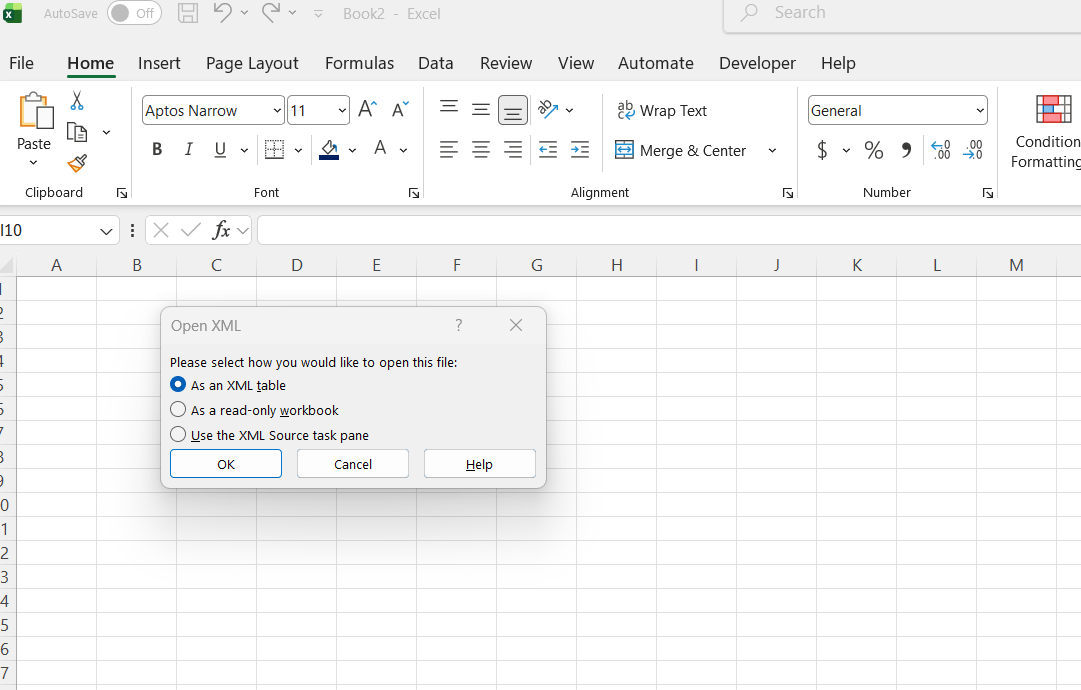
- In the Open XML box, choose As an XML table and click OK.
- If Excel says the file does not refer to a schema, click OK. Excel builds one from the data.
Excel opens the file as a table, with the tag names as column headings. Because a table is flat, Excel repeats each order’s details on every item row. In our sample file, 3 orders become 6 rows.
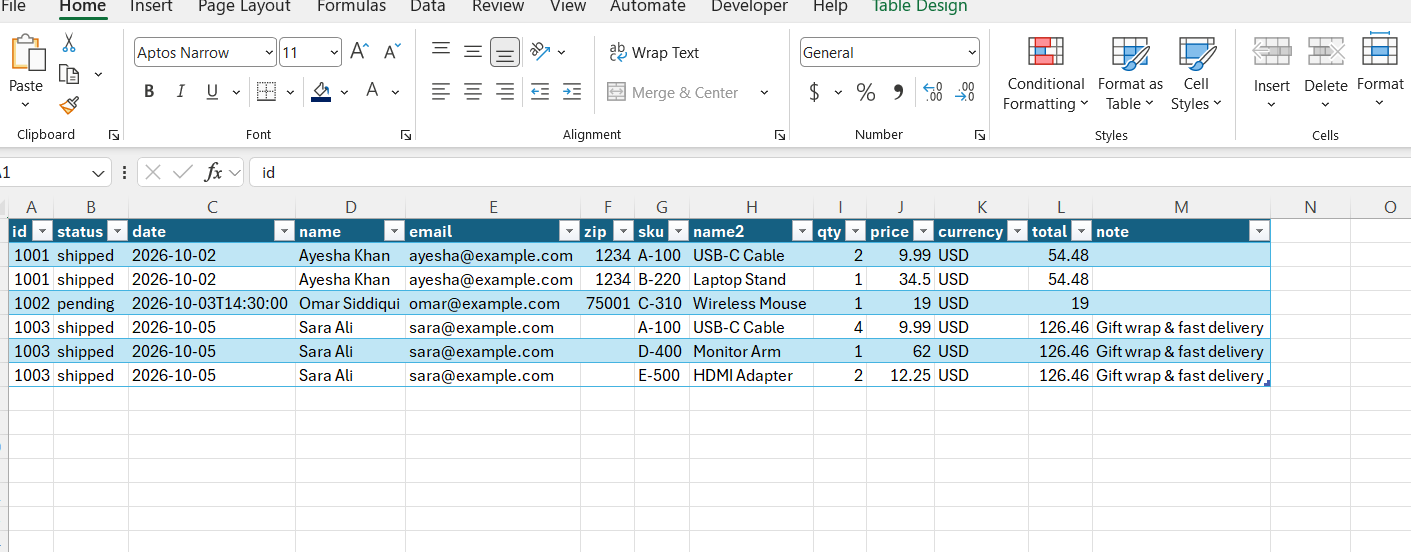
Watch for three things in the result: a zip code of 01234 loses its leading zero and shows as 1234, a date-time such as 2026-10-03T14:30:00 stays as text, and a second column with the same tag name is renamed (here “name2”). If these matter, use Method 2 or the converter.
The other two choices in the Open XML box do different things:
- As a read-only workbook: opens a plain table with no schema or XML map, so you cannot accidentally overwrite the original file.
- Use the XML Source task pane: shows the XML structure so you can drag the elements you want onto the sheet (see Method 3).
If you see an Import XML box instead, your file points to one or more XSLT style sheets. You can open it without a style sheet (a plain table) or pick one of the style sheets. A file opened with a style sheet is read-only.
Method 2: Import XML with Power Query (best for nested XML)
Power Query shows you the structure of the XML before it loads, which makes it the best choice when the file has nested or repeating elements.
- Go to Data > Get Data > From File > From XML. In some Excel 2016 builds the button is called New Query.
- Select your XML file and click Import.
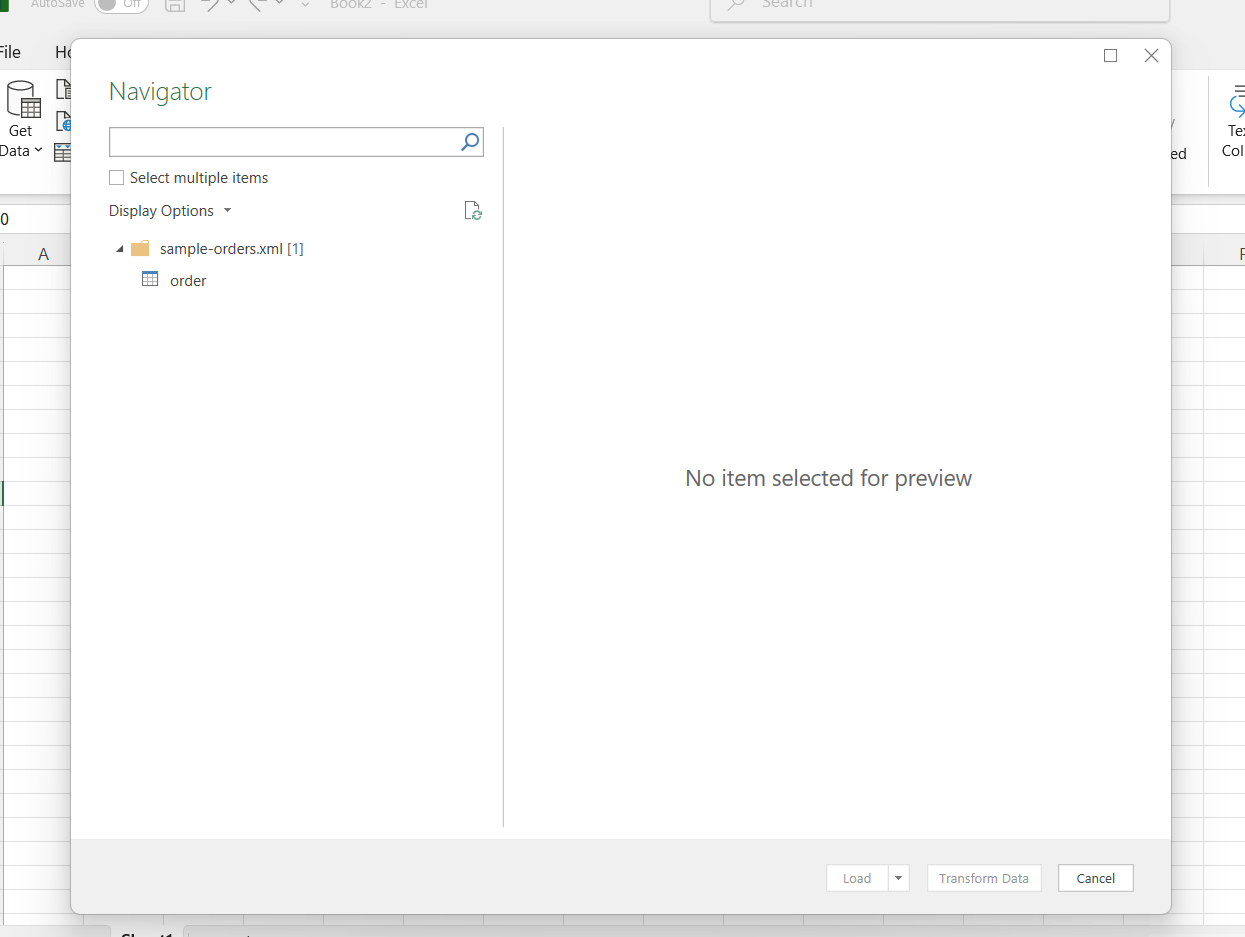
- In the Navigator, click the table you want to see. For the sample orders file, that is the
ordertable. - Click Transform Data to clean it in the Power Query Editor, or Load to put it straight on a sheet.
Power Query keeps one row per order and puts the nested elements inside it. Attributes appear as columns named like Attribute:id.
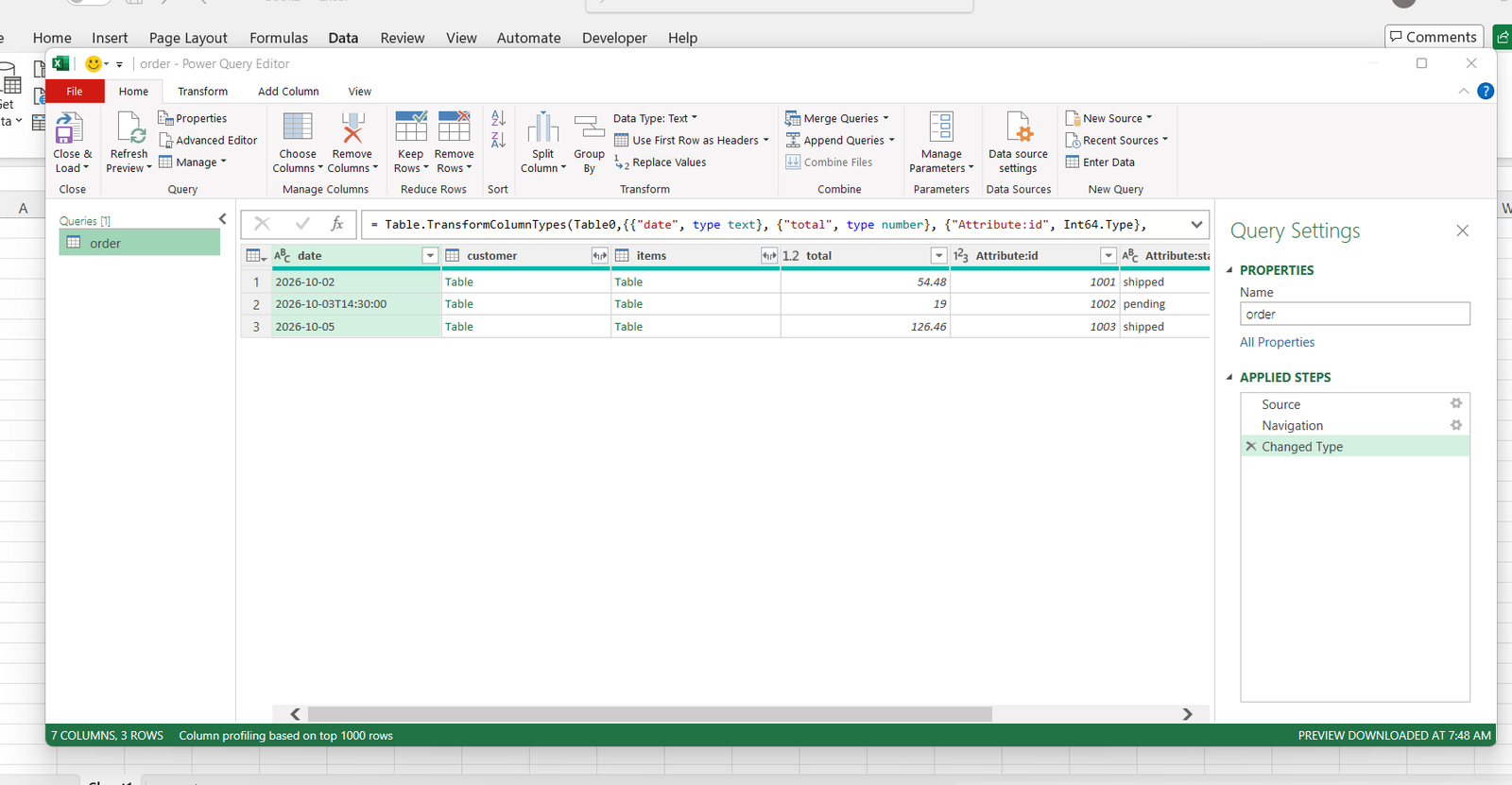
Expanding nested data. A column that contains the word Table in each cell holds nested elements. Click the small expand icon (two arrows) in that column header, choose the fields you want, and click OK. Repeat for each nested level, then click Close & Load.
Check the data types. Power Query adds a Changed Type step automatically. Review it, because a date-time value may stay as text and IDs with leading zeros should be set to Text.
Refreshing. When the XML file changes, go to Data > Refresh All and Excel re-reads it.
Excel 2010 and 2013. Power Query is a free add-in from Microsoft. After installing it, use Power Query > From File > From XML.
Method 3: Import XML with the Developer tab (XML maps)
Use this when your XML follows a schema or when you plan to export data back to XML. The Developer tab is hidden by default.
- Show it: File > Options > Customize Ribbon, tick Developer, click OK.
- Go to Developer > Import, select your XML file and click Import.
- In the Import Data box, choose XML table in existing worksheet or XML table in new worksheet.
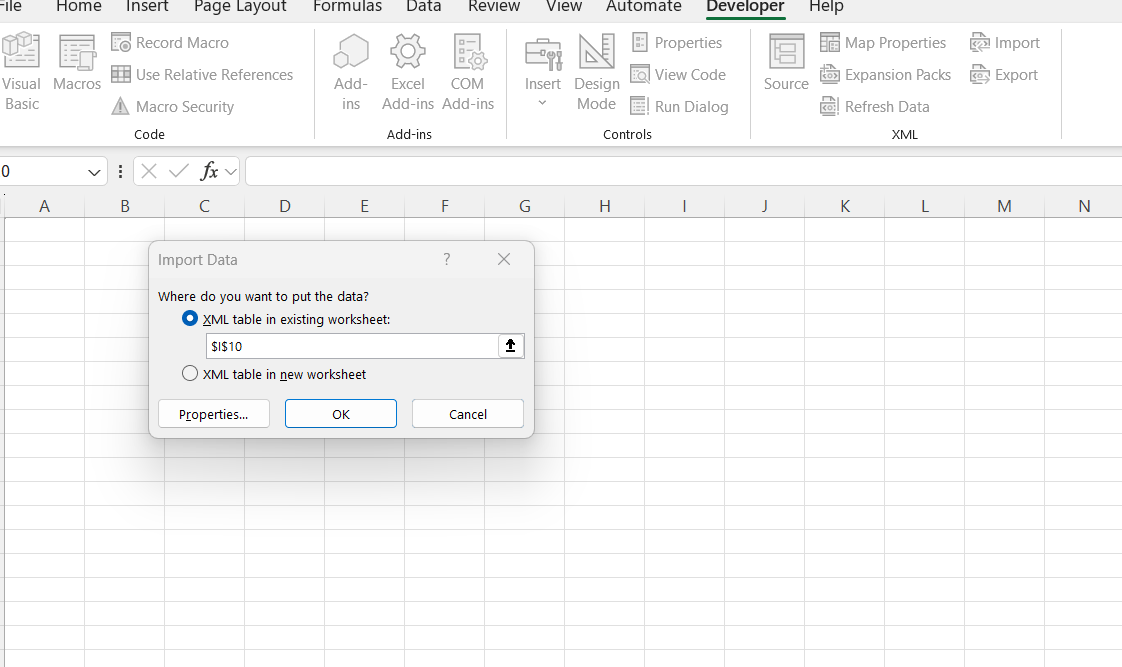
To map elements by hand, click Developer > Source to open the XML Source pane, then drag elements onto the sheet. If the file has no schema, Excel creates one for you, but you cannot export that inferred schema as an .xsd file.
To import several XML files that share the same structure, hold Ctrl or Shift while selecting them in the Import box. If the files have the same namespace but different structures, use Data > Get Data > From File > From XML instead (in Excel 2016 and earlier: Data > From Other Sources > From XML Data Import), because the Import command can overwrite data in that case.
What is XML mapping in Excel?
An XML map tells Excel how the elements in an XML file line up with cells in your workbook. You create one by adding an XML schema file (.xsd) to the workbook. If you do not have a schema, Excel can infer one from the XML file itself, but you cannot export that inferred schema as an .xsd file.
To map elements, go to Developer > Source, click XML Maps > Add, pick your file, then drag elements from the XML Source pane onto the sheet. A repeating element, such as order or item, becomes an XML table. A single element becomes one mapped cell. Mapped elements appear in bold in the pane.
Once mapped, you can import an XML file into those cells and export the cells back to XML. Two things to know: XML mapping only works in Excel for Windows, not Excel for Mac or Excel for the web, and Microsoft describes it as a legacy feature and suggests Power Query for complex or nested XML.
Going the other way, from a spreadsheet to an XML file, Excel also needs a map like this. If you want XML out of a sheet without setting one up, use the free Excel to XML converter.
How to compare two XML files in Excel
Excel has no built-in XML comparison, so the approach is to turn both files into tables and compare those.
- Open or import each XML file with the same method (Method 1 or 2) so both tables have the same columns.
- Copy both tables into one workbook, each on its own sheet.
- On a third sheet, enter
=Sheet1!A2=Sheet2!A2in the first cell and fill it across and down. TRUE means the values match and FALSE means they differ. Use=EXACT(Sheet1!A2,Sheet2!A2)if capital letters matter. - To highlight differences, apply Conditional Formatting on the first sheet with the rule
=A2<>Sheet2!A2.
If the rows are in a different order, add a key column such as an ID, and match rows with XLOOKUP instead of comparing row to row. For very large or nested files, convert each one with the XML to Excel converter first, using the same layout for both.
Method 4: Convert the XML with an online converter
If the file is huge, deeply nested, spread over many files, or you are on a Mac, a converter is often easier than fighting Excel’s import. Our free XML to Excel converter runs in your browser, so the file is not uploaded. It finds the repeating records, lets you choose a flat table or linked sheets, and downloads .xlsx, .xls or CSV. If you only need a CSV file, use our free XML to CSV converter.
On Excel for Mac, XML import support has been inconsistent. Microsoft’s own community threads show users unable to find the XML option in Power Query, and one report that it stopped loading after a mid-2026 update. If it does not work on your Mac, use the converter.
Do you need an XML add-in for Excel?
Not to open or import XML. Excel opens XML files itself (Method 1), imports them with Power Query (Method 2) and maps them with the Developer tab (Method 3), and Excel 2010 and 2013 can use the free Power Query add-in.
When people search for an “XML add-in”, they usually mean Microsoft’s XML Tools Add-in. It was made for Excel 2003 only. It converts a range to an XML list, creates XSD schema files from an XML map, and refreshes all XML maps at once. Users have reported errors when running it in newer versions of Excel, including a 64-bit error in Excel 2016.
Why your XML looks messy in Excel, and how to fix it
- Columns say “Table” or “Record”. That is nested data. In Power Query, click the expand icon in the column header.
- Everything appears in one row. The wrong element was used as the record. In the converter, change “Each row comes from”. In Power Query, drill into the table that holds the repeating element.
- Numbers show up as text. Excel may import values as text if the type is not supported or does not match the schema. Use Data > Text to Columns, multiply by 1, or set the column type in Power Query.
- Leading zeros disappear. Set the column type to Text before loading.
- Repeated items spread across columns. Use Power Query to expand them into rows, or use the converter’s linked sheets layout.
XML file not opening in Excel? Common causes
- The XML is not valid. Excel shows an XML Import Error box. Click Details to see the line and the problem. A bare
&, a missing closing tag and bad characters are the usual culprits. - Protected View. Files downloaded from the internet open in Protected View. Click Enable Editing.
- The file is too big for one sheet. Excel allows 1,048,576 rows per sheet, and an XML table cannot expand past it.
- Wrong program opens it. Right-click the file, choose Open with > Excel, or use File > Open from inside Excel.
Frequently asked questions
Can Excel open an XML file directly?
Yes. Use File > Open and choose “As an XML table”, or import it with Data > Get Data > From File > From XML.
How do I open an XML file in Excel 2010 or 2013?
Use File > Open with “As an XML table”, or Developer > Import. For Power Query, install Microsoft’s free Power Query add-in.
How do I convert XML to Excel without opening it?
Use an online converter such as our XML to Excel converter. It runs in your browser and downloads an .xlsx file.
Why is my XML data all in one row?
The wrong element is being treated as the record. Pick the element that repeats, such as order or item.
Can I open an XML file on a Mac?
You can try File > Open or Data > Get Data, but XML support on Excel for Mac has been inconsistent. A browser-based converter is the more reliable route.
Can I open an XML file without Excel?
Yes. A text editor or a web browser can show the contents. See how to open an XML file on any device.
Can XML files be opened in Excel?
Yes. Use File > Open and choose “As an XML table”, Data > Get Data > From File > From XML (Power Query), or Developer > Import.
How do I open an XML file in Excel online?
Excel for the web does not support XML mapping, so use a browser-based tool such as our XML to Excel converter, then open the result in Excel.
Is there an XML add-in for Excel?
Microsoft’s XML Tools Add-in exists, but it was built for Excel 2003 and users report problems in newer versions. For current Excel, use File > Open, Data > Get Data > From XML, or the Developer tab instead.
Want a quick way to work with Excel and AI? Grab the free ChatGPT Prompts for Excel pack.