
How to Make All Cells the Same Size in Excel
Quick answer: To make all cells the same size in Excel, press Ctrl+A to select the whole sheet. Go to Home > Format > Row Height, type a number, and click OK. Then go to Home > Format > Column Width, type a number, and click OK. Every row now has one height and every column has one width.
Want to follow along? Download the free cell size practice file. It has sample sheets for this guide and an Answers sheet.
What you need to know first
- Excel sizes whole rows and whole columns, not single cells.
- Rows use points for height. Columns use characters for width. A height of 15 and a width of 15 do not match.
- These steps work in Excel for Microsoft 365, 2024, 2021, 2019 and 2016 on Windows. Mac and web steps are further down.
How do I make all cells the same size in Excel?
Select every cell, then give the sheet one height for rows and one width for columns. Excel applies both to the whole worksheet, so every cell matches.
- Click the Select All triangle in the top-left corner, where the row numbers meet the column letters. Or press Ctrl+A.
- Go to Home > Format > Row Height.
- Type a number, such as 20, and click OK.
- Go to Home > Format > Column Width.
- Type a number, such as 15, and click OK.

Tip: If your cursor sits inside a block of data, the first Ctrl+A selects only that block. Press Ctrl+A again to select the whole sheet.
Is there a shortcut to make all cells the same size?
Yes. Press Ctrl+A, then press Alt, H, O, H to open the row size box. Type a value and press Enter. Next press Alt, H, O, W to open the column size box, type a value, and press Enter. Press the Alt keys one after another, not all at once.
| Task | Windows keys |
|---|---|
| Select the whole sheet | Ctrl+A (twice inside a data block) |
| Open the row size box | Alt, H, O, H |
| Open the column size box | Alt, H, O, W |
How do I resize all cells at once without doing them one by one?
Select the whole sheet, then drag one border. Excel moves every row or column with it.
- Click the Select All triangle.
- Drag the line under any row number up or down. Every row changes.
- Drag the line to the right of any column letter. Every column changes.
While you drag, a small tip box shows the size in pixels. Watch that number if you want an exact result.

How do I set the same row height for all rows?
Select all rows, go to Home > Format > Row Height, type a value from 0 to 409, and click OK. Excel measures this in points. The default is 15.
How do I set the same column width for all columns?
Select all columns, go to Home > Format > Column Width, type a value from 0 to 255, and click OK. This number counts how many characters of the default font fit in the cell. The default is 8.43.
How do I change row size for only one part of my sheet?
Pick only the rows you want, then set their height.
- Click the first row number, such as 5.
- Hold Shift and click the last row number, such as 10.
- Set the height the same way as before: open the Format menu, type a value, and click OK.
Only rows 5 to 10 change. The same steps work for a group of columns. One limit: a row has one height across the whole sheet. You cannot make row 5 taller in columns A to D only.
Why does Excel use different units for row height and column width?
Width counts characters of the default font. Height uses points, the same unit as font size. That is why a width of 15 and a height of 15 look different on screen.
| Width | Height | |
|---|---|---|
| Unit | Characters of the default font | Points |
| Default | 8.43 | 15 |
| Smallest | 0 (hidden) | 0 (hidden) |
| Largest | 255 | 409 |
To compare the two, use one of these:
- Pixels: drag a row or column border and read the pixel number in the tip box.
- Inches or centimeters: switch to View > Page Layout. In this view, heights and widths use inches by default. To use centimeters, go to File > Options > Advanced, find Display, and change Ruler Units.
How do I make cells perfect squares in Excel?
Give rows and columns equal values in a unit they share. There are two ways.
Option 1: Page Layout view (easiest)
- Go to View > Page Layout.
- Select all cells.
- Set the height to a value, such as 0.5 inches.
- Set the width to the same value.
- Go back to View > Normal.
Option 2: Match pixels
- Select all cells.
- Drag a row border and note the pixel number, such as 20 pixels.
- Drag a column border until the tip box shows the same pixel number.
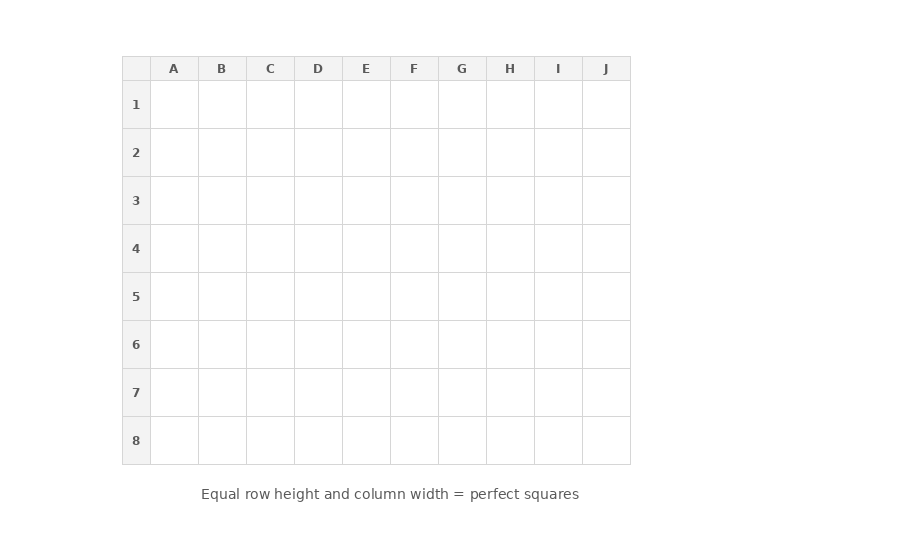
What is the exact ratio to make a cell square?
There is no single number that works for everyone. Width depends on your default font, so the right value changes when the font changes. Match the pixels for squares on your screen, or use inches in Page Layout view for squares on the printed page.
How do I make all cells the same size on a Mac?
Click the Select All triangle at the top-left corner of the grid. Then use the menu bar at the top of the screen:
- Go to Format > Row > Height, type a value, and click OK.
- Go to Format > Column > Width, type a value, and click OK.
How do I do it in Excel for the web?
Drag the line on the right side of a column letter to set its width. Drag the line under a row number to set its height.
Can I make individual cells the same size?
No. Excel sizes whole rows and whole columns, not single cells. A cell gets its height from its row and its width from its column. To make a block of cells match, select those rows and columns and give them one height and one width.
What are other ways to make cells match?
Copy one column’s width to another
- Copy a cell in the column that has the width you want.
- Right-click a cell in the target column and choose Paste Special.
- Pick Column widths and click OK.
Only the width moves. The data in the target column stays the same.
Change the default width
- Click the sheet tab. For every sheet in the file, right-click a tab and choose Select All Sheets.
- Go to Home > Format > Default Width.
- Type a value in Standard column width and click OK.
Use a short VBA macro
Use this if you resize many sheets often.
Sub MakeCellsEqual()
    Cells.RowHeight = 20
    Cells.ColumnWidth = 15
End Sub- Press Alt+F11 to open the VBA editor.
- Go to Insert > Module and paste the code.
- Press F5 to run it on the active sheet.
Your challenge
Open the practice file. It holds a sample data sheet, a grid for square cells, and a table with merged cells of different sizes.
- Give every cell on Sheet1 a height of 20 and a width of 15.
- Change the width of the selected columns to 15.
- Set the height of rows 1 and 2 to 24.
- Change the width of column D to exactly 25 characters.
- Adjust the width of columns B to G to 26 pixels.
- Make the grid on Sheet2 into perfect squares.
Bonus: Unmerge the cells on Sheet3 so the table can sort without an error.
Check your work on the Answers sheet.
Frequently asked questions
Why do my rows keep changing height?
Rows that you have not sized by hand grow to fit wrapped text or a bigger font. Set a fixed height with Home > Format > Row Height, and the rows stop changing.
Why can’t I resize any cells?
The sheet is probably protected. Go to Review > Unprotect Sheet. If you want to keep protection on, tick Format rows and Format columns when you protect the sheet.
Why does Excel say merged cells need to be the same size?
Excel shows this message when you sort a range that has merged cells of different sizes: “This operation requires the merged cells to be identically sized.” To fix it, unmerge the cells with Home > Merge & Center > Unmerge Cells, then sort again.
Why doesn’t AutoFit make my cells match?
AutoFit sizes each row or column to fit what is inside it. Long text gets a wide column and short text gets a narrow one. Set an exact height and width instead when you want every cell to match.
Can I make individual cells a different size from the rest of the row or column?
No, not on their own. A cell’s height always matches its whole row, and its width always matches its whole column. Merging cells can visually combine a block, but it still follows the row and column sizes underneath it.
Key takeaways
| Your goal | Best way |
|---|---|
| Exact, even grid | Home > Format menu |
| Fast, by eye | Select All and drag a border |
| Match one column to another | Copy, then Paste Special > Column widths |
| Set a standard width for a sheet | Home > Format > Default Width |
| Even grid on many sheets | VBA macro |
| Square cells | Page Layout view, or match pixels |